Settings
Configure QMonitor
The Settings page lets you configure personal preferences and organization
defaults that affect how QMonitor behaves for your user and the orgs you
manage.
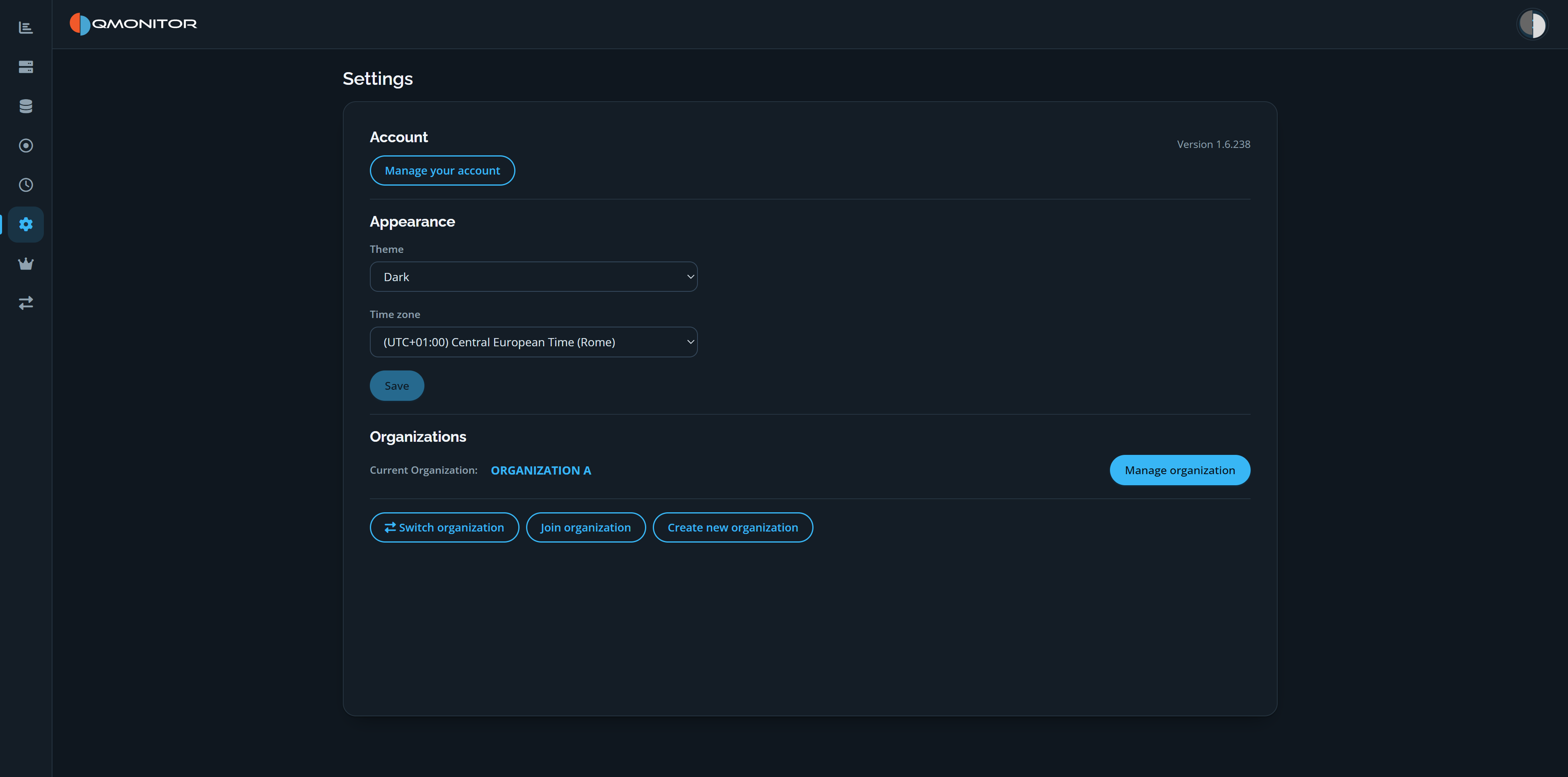 Settings page showing account access, appearance preferences, and organization actions
Account management
- Manage your account: button at the top of the page that opens your Account
page. Use the Account page to update your email, password, 2FA, and
personal contact details.
Appearance
- Theme: choose Light or Dark theme for the application. The selected theme
is applied immediately after you click Save.
- Time zone: select the time zone used to display timestamps in the UI for
your user. Note: the time zone setting applies only to your user profile,
not to the organization or other users.
- Save applies appearance changes and persists them to your profile.
Organizations
- Current organization: the name of the organization you are currently
scoped to is shown near the top of the organizations section.
- Manage organization: button opens the Manage Organization page where you
can change org-level settings, members, and billing (if permitted by your
role).
- Organization actions:
- Join organization: request to join an existing organization.
- Create new organization: start a new organization and become its owner.
- Switch organization: change your active organization context when you
belong to multiple organizations.
Behavior and tips
- Personal settings (theme and time zone) are stored per user and follow you
across devices when you sign in.
- Organization management actions depend on your role and permissions; some
controls may be hidden if you lack admin privileges.
- Use Save to persist changes; unsaved edits are not applied to your session.
Accessibility and support
- Changing theme can improve readability and reduce eye strain for long
sessions; use the Dark theme for low-light environments.
- If you need assistance managing account or organization settings, contact
your org administrator.