Jobs
Schedule Tasks with QMonitor
This page lists scheduled jobs and provides controls to create, filter,
inspect, and clean up job records.
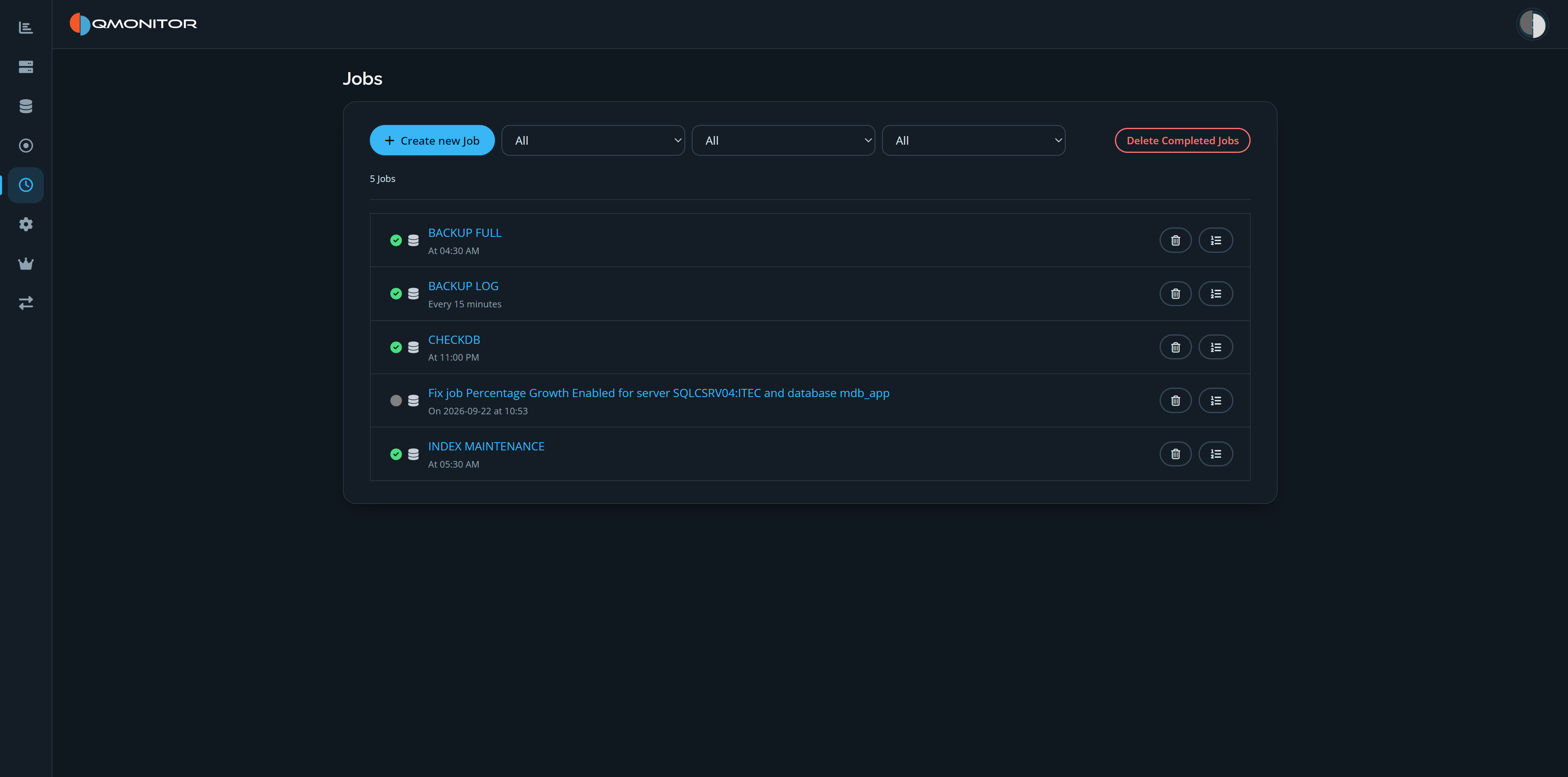 Jobs page showing filters, scheduled jobs, execution statuses, and row actions
Top controls
- Create new Job: opens the New Job page to define a job and its schedule.
- Filters:
- Job status: All, Not run, Failed, Succeeded, Executed — use this to
focus on the executions you care about.
- Instance: restrict the list to a single SQL instance.
- Job type: Manual jobs or Autofix jobs (automatic remediation).
- Delete Completed Jobs: removes completed job records.
Jobs list
- The count above the list shows how many jobs match the selected filters.
- Each row contains:
- Job status icon: visual state of the latest execution
- Green checkmark = completed successfully
- Blue spinner = running/in progress
- Red X = failed/error
- Job type: indicates the action (Execute query or Execute command).
- Name: job name; next to it (in smaller text) the schedule
description (for example “at 02:00” or “On 2025-11-01 at 09:00”).
- Delete: button to remove the job definition and its history.
- Show log: opens the execution log for the job to inspect output,
errors, and step details.
Row actions and navigation
- Click the job name to open the Job Detail page to edit or view the job.
- Use Show log to view recent runs, stderr/stdout, and execution status.
- Use Delete to remove obsolete jobs.
Tips
- Filter by Failed to quickly find jobs that need attention.
- Use the Instance filter to hand off job issues to the responsible DBA.
- Regularly remove completed jobs to keep the list manageable.
1 - Job Detail
Define and edit scheduled jobs
This page lets you review, create, and edit a scheduled job and its settings.
Jobs can execute a T-SQL query against one or more instances or run an
arbitrary command on one or more agents.
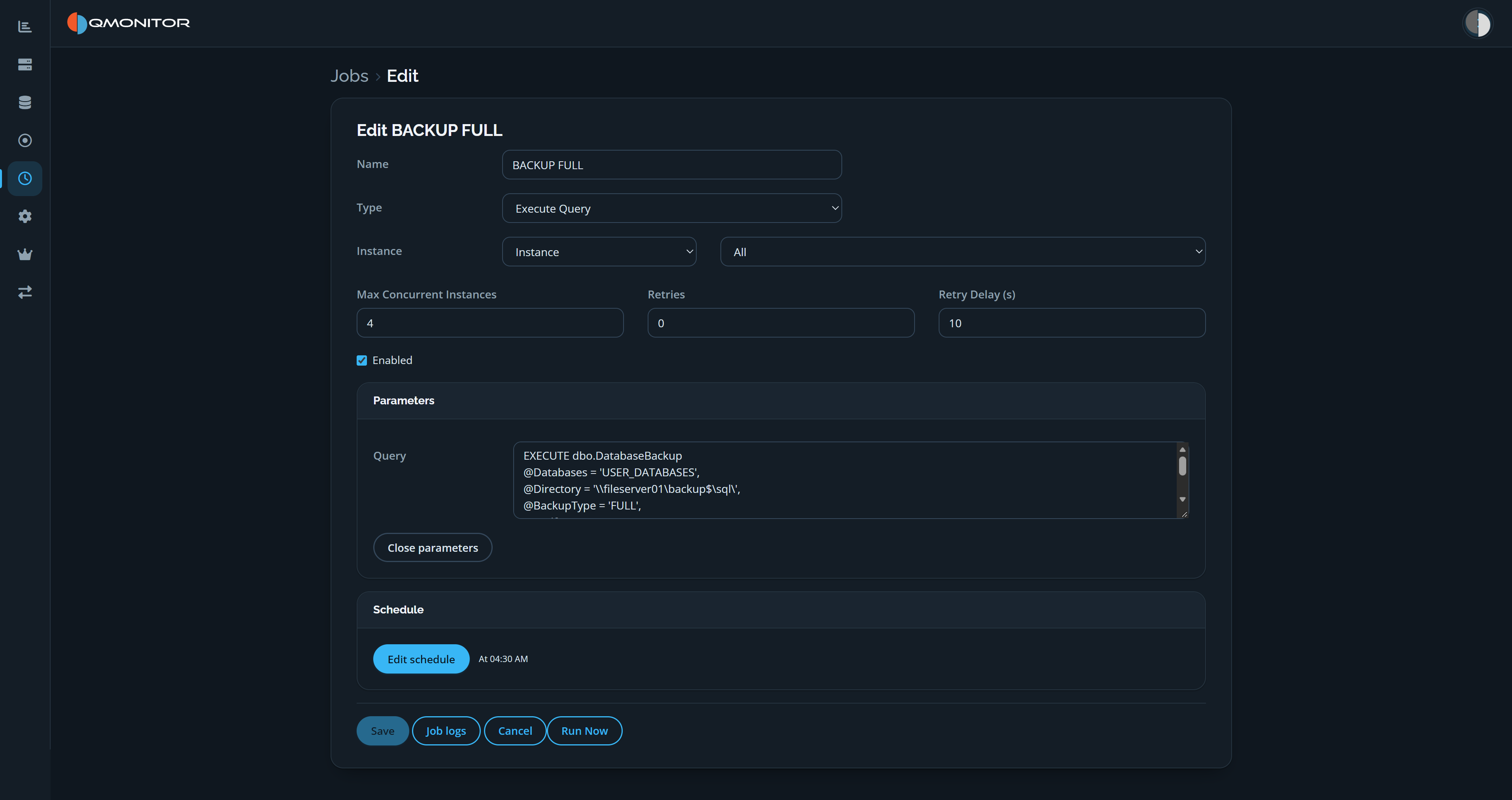 Edit Job page showing query settings, parameters, schedule, and job actions
Job properties
- Name: descriptive job name.
- Type: choose the job type:
- Execute Query — runs the specified SQL text against selected SQL instances.
- Execute Command — runs the specified command on one or more agents.
Execute Query controls
- Instance selection:
- First dropdown: choose selection mode (Instance, Instance Group, or Tag).
- Second dropdown: pick one Instance, Group, or Tag depending on
the selection mode. Use groups or tags to target many instances.
- Max Concurrent Instances: maximum parallel executions:
- 1 = run sequentially (no parallelism).
- 0 = run against all selected instances in parallel.
- Choose a limit to avoid saturating CPU, I/O, or network (for example,
limit concurrent backups to 5 to avoid disk flooding).
- Retries: number of retry attempts on failure.
- Retry delay (s): delay, in seconds, between retry attempts.
Execute Command controls
- Agent target: choose All Agents or select a specific agent to run the
command. Commands are executed by the agent process on the host running
the selected agent(s).
Common controls (both job types)
- Enabled: checkbox that enables or disables the job without deleting it.
- Parameters: editor containing the job’s query or command:
- For Execute Query jobs, the Query text runs against the target instances.
- For Execute Command jobs, the command is executed by the agent on the host.
- Schedule: click “Edit Schedule” to expand schedule settings:
- Type: Recurring or One-time.
- Cron Expression: enter a cron expression to define recurring schedules.
- Help: the Help button opens documentation that assists in crafting
valid cron expressions.
- End Date: optional date when the schedule stops running.
- Save: persist job definition and schedule.
- Run Now: immediately queue the job for execution (bypasses the schedule).
- Job logs: open the job logs page to inspect past runs and execution output.
- Cancel: discard unsaved changes and return to the Jobs list.
Notes and tips
- Use small, targeted schedules during testing and run “Run Now” to validate
behavior before enabling wide production schedules.
- Restrict Max Concurrent Instances for heavy operations (backups, restores,
large ETL) to prevent resource contention.
- Commands executed by agents require appropriate agent permissions on the
host
- Sysadmin acknowledgement
- If an agent connects to a SQL instance using sysadmin credentials, the
job will only run if the instance definition includes the
“Acknowledge you are running jobs as a sysadmin” checkbox. This guard
prevents accidental execution of high-privilege operations on instances
where explicit consent has not been given.
- Toggle the acknowledgement on the Instance Details page. Jobs that
require sysadmin rights will display a warning if the acknowledgement
is not enabled for the target instance.
2 - Job History
History of executed jobs
The Job History page displays past executions of scheduled jobs and their
status so you can inspect runs, troubleshoot failures, and audit activity.
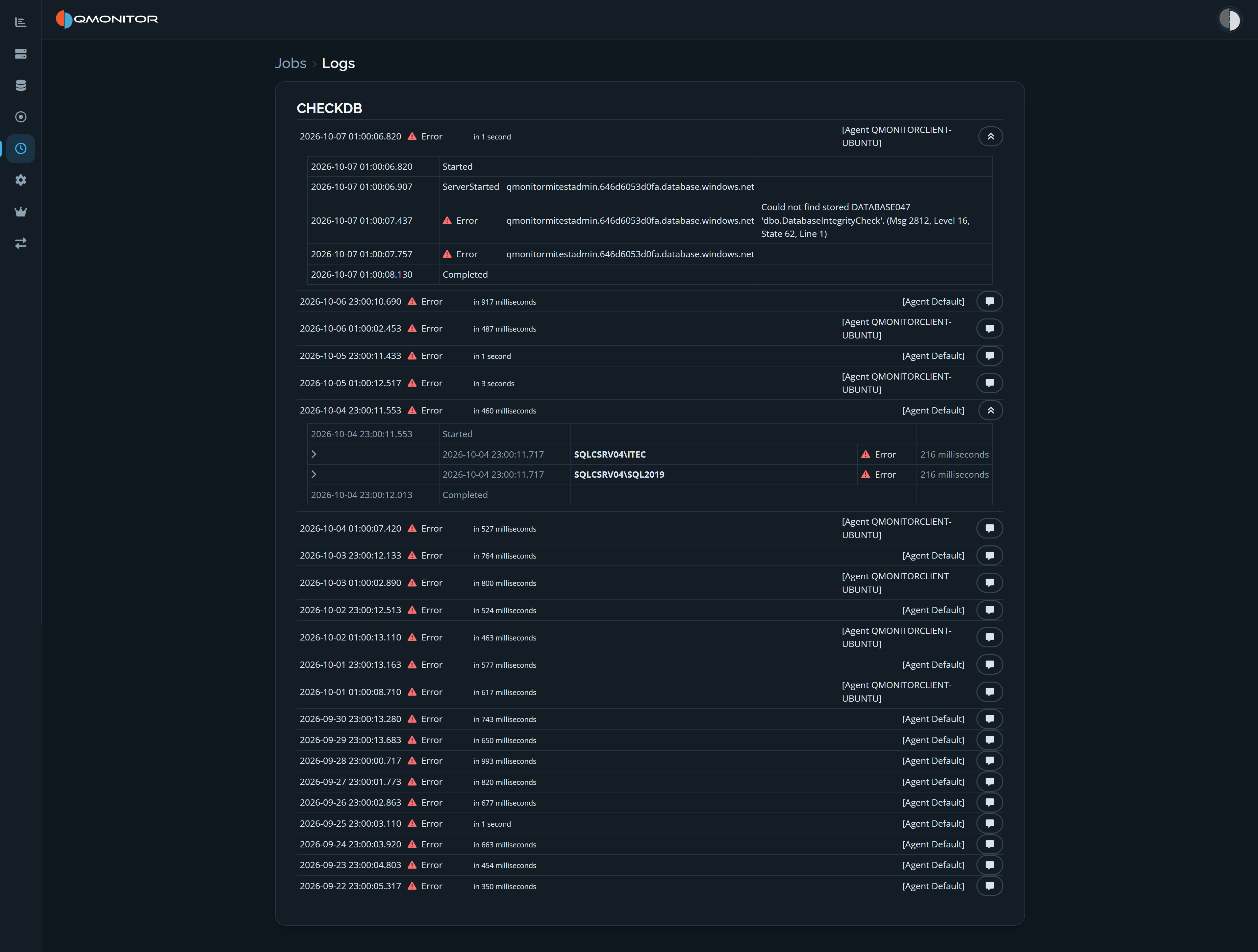 Job Logs page showing execution summaries and expanded event details
Execution history
Executions are grouped under their job name and ordered newest first. Each
execution summary shows its date and time, status, duration, and the agent
that performed it. Statuses include running, succeeded, and error. The list
supports infinite scrolling.
Run details
Expand an execution to inspect its chronological event details. These can
include start and completion events, target servers, per-server status and
duration, and messages explaining errors. Use the details to identify which
server or step failed and review the reported error.